Managed Windows setup for laptops, desktops, offices and institutions
Windows Installation Bhubaneswar
Windows installation should not end at copying setup files from a USB drive. A useful computer must boot correctly, detect the hardware, connect to the network, receive essential updates, protect user data and be ready for daily work. The Best Freelancer provides Windows installation in Bhubaneswar for schools, hospitals, hotels, retail shops, corporate offices, startups and home users who need a stable system, not a temporary reinstall.
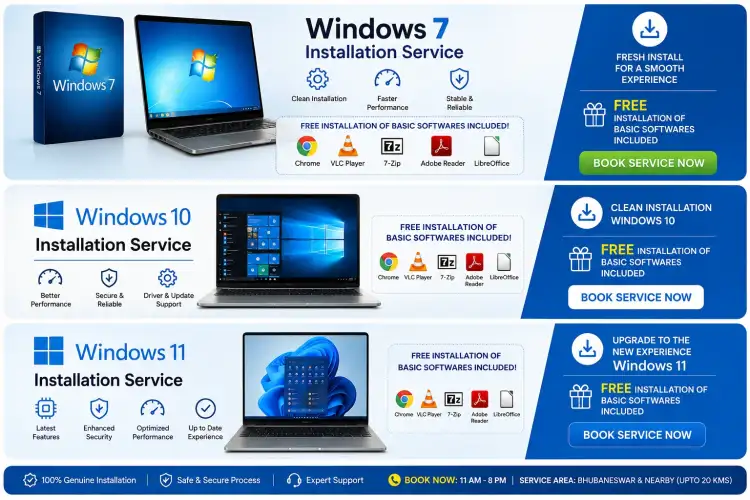
We handle Windows 11 installation, Windows 10 installation, OS installation, PC formatting, laptop Windows install, desktop Windows install and computer formatting with a managed IT approach. Before formatting, we check device health, backup needs, driver support, license status, storage condition, software requirements and the way the computer will be used after handover.
- Starting price: ₹499 for standard Windows installation
- Visit charge: ₹300 for onsite assessment within supported Bhubaneswar areas
- Estimated duration: 1.5 to 3 hours for most single-system installations
- Service type: onsite setup for homes, offices, shops, schools and institutions
Call +91 79786 04102 or message on WhatsApp to schedule Windows installation near you.
Service Overview
This service is for computers that need a clean Windows setup, a fresh start after formatting, a version upgrade, or a proper operating system installation after storage replacement. We work on laptops and desktops used for billing, reception, teaching, pharmacy, accounts, design, office documents, email, browsing, online meetings and general home use.
A clean installation is often the right choice when Windows has become slow, infected, unstable, corrupted, overloaded with unwanted applications, or repeatedly failing during startup. It is also useful when an organization wants all systems prepared in a consistent way before giving them to staff or students.
This is not positioned as a laptop repair shop service. Windows installation is treated as part of managed endpoint readiness. The goal is to return a computer that is practical, secure and maintainable.
Which Windows service do you need?| Requirement | Recommended Service | When It Makes Sense |
|---|
| Computer is slow but hardware seems usable | PC formatting with clean Windows installation | Useful when the system is overloaded, cluttered or infected |
| New SSD or hard drive has been installed | Fresh OS installation | Required when the drive has no bootable operating system |
| Windows 10 device supports Windows 11 | Windows 11 installation or upgrade | Suitable when hardware meets Microsoft requirements |
| Office needs several systems prepared | Managed Windows deployment | Suitable for consistent user setup, software list and security baseline |
| Old application does not run on Windows 11 | Windows 10 installation | Useful for compatibility with legacy billing, diagnostic or office software |
Problems We Solve
Many Windows issues look simple at first: slow boot, repeated restart, missing WiFi, no sound, expired antivirus, printer not detected, or files opening slowly. In practice, the cause may be corrupted system files, poor driver support, failing storage, unsupported Windows version, wrong partition format, malware, or years of unplanned software changes.
Slow and Unstable Computers
If a laptop or desktop takes too long to start, freezes during routine tasks, or shows repeated Windows errors, a clean installation can remove years of software clutter. Before formatting, we check whether the issue may be caused by hard drive health, low RAM or background startup load.
Boot Failure and Corrupted Windows
Systems that display automatic repair loops, blue screen errors, missing boot device messages or update rollback loops may need OS installation after data backup. We assess whether files can be copied before formatting and explain the risk clearly before touching partitions.
Virus, Malware and Unwanted Software
For heavily infected systems, random cleanup tools may leave hidden damage behind. A formatted installation, followed by security updates and careful software reinstallation, gives the device a cleaner baseline.
Missing Drivers After Installation
Windows may install generic drivers, but generic does not always mean correct. We install or verify chipset, graphics, audio, WiFi, LAN, Bluetooth, touchpad, printer and device-specific drivers where available.
Office Systems That Are Not Ready for Work
A computer is not ready just because Windows opens. It may still need user accounts, printer mapping, browser setup, PDF tools, office software, security configuration, network share access, backup settings and basic documentation.
Who Needs This Service
Windows installation near me is commonly searched when a single device stops working. For organizations, the need is larger: predictable computers, reduced downtime and fewer repeated support calls.
Use cases by customer type| Customer | Common Need | Installation Focus |
|---|
| Schools | Computer lab systems, admin desktops, teacher laptops | Standard software set, browser setup, printer access, user restrictions |
| Hospitals and clinics | Reception, pharmacy, billing and reporting systems | Stable Windows version, printer and scanner setup, data caution, controlled updates |
| Hotels | Front desk systems, accounts computers, reservation terminals | Business software compatibility, printer setup, network access |
| Retail shops | Billing desktops, barcode systems, invoice printing | POS software readiness, printer drivers, backup folder guidance |
| Corporate offices | Employee laptops and shared desktops | User profile setup, productivity software, security baseline |
| Startups | Development, design, sales and operations devices | Clean OS, browser profiles, collaboration tools, secure login |
| Home users | Slow laptops, student computers, family desktops | Personal files backup, Windows activation guidance, basic software setup |
Benefits
- A cleaner operating system without old clutter, hidden startup load and unused trial software
- Correct Windows version selection based on hardware, software and license status
- Reduced driver problems after installation, including WiFi, audio, display and printer issues
- Better security baseline with updates, firewall, account settings and browser hygiene reviewed
- Lower chance of accidental data loss because backup requirements are discussed before formatting
- Work-ready setup for office users, not just a blank Windows desktop
- Clear guidance on what is included, what is chargeable and what requires separate licensed software
Why Choose Us
Windows installation is usually treated as a quick technician task. For a business, school, clinic or shop, that approach creates repeated problems: missing drivers, unclear licenses, no backup plan, unmanaged updates and no record of what was installed. The Best Freelancer handles installation as part of endpoint management.
Managed IT Partner Mindset
We look at the device in its work environment. A billing computer, lab system, reception laptop and home laptop do not need the same setup. We ask how the system will be used before deciding the Windows version, partition layout, software list and security settings.
Practical License Guidance
We help you understand whether your device has an existing digital license, OEM license, retail key or no valid Windows license. We do not sell pirated activation or bypass tools. If a valid license is required, we guide you toward proper procurement.
Attention to Data Before Formatting
Formatting without a backup conversation is careless. We help identify Desktop, Documents, Downloads, browser data, accounting folders, billing software data, email archives and custom application folders that may need backup before installation.
Driver and Software Readiness
A fresh Windows installation may still be unusable if network, audio, graphics or printer drivers are missing. We check Device Manager, Windows Update, manufacturer support pages where needed and available driver packages.
Our Installation Process
Requirement Check
We confirm the device type, Windows version needed, current problem, backup requirement, software list and whether the installation is for personal, office or institutional use.
Device and Data Assessment
Before formatting, we check storage visibility, boot condition, existing partitions, available user data and obvious hardware concerns. If the drive appears unhealthy, we explain the risk before proceeding.
Backup Planning
We identify what should be copied, where it should be copied and whether the available backup media has enough capacity. Backup time depends on data size and drive health.
Windows Installation
We install the selected Windows version, create or preserve partitions as agreed, configure region, language, user account, privacy choices and basic system settings.
Driver Installation
We install or verify important drivers including chipset, display, network, WiFi, Bluetooth, sound, touchpad, printer and scanner drivers where applicable.
Updates, Security and Software Setup
We apply essential Windows updates, check Windows Security, install agreed standard software and prepare the system for routine use.
Final Verification
We test boot, internet, sound, display, keyboard, touchpad or mouse, printer if included, activation status and the agreed software list before handover.
Supported Windows Versions
We support Windows 11 installation and Windows 10 installation for compatible laptops and desktops. The right choice depends on processor support, TPM availability, RAM, storage type, driver availability and business software compatibility.
Windows 11 and Windows 10 comparison| Version | Good For | Important Checks |
|---|
| Windows 11 | Newer laptops, modern desktops, office systems with current hardware | TPM 2.0, supported CPU, Secure Boot, driver availability, business software support |
| Windows 10 | Older but usable systems, legacy applications, billing or device-dependent setups | License status, driver availability, application compatibility, support expectations |
| Windows 10 to Windows 11 upgrade | Systems already running well and meeting requirements | Backup, compatibility check, storage free space, rollback plan |
| Clean format and reinstall | Slow, infected, unstable or cluttered systems | Data backup, license status, software installers, driver availability |
Pricing
Pricing depends on the device condition, backup size, number of systems, software requirements and onsite location. The prices below are starting points so you can estimate the job before booking.
Windows installation pricing in Bhubaneswar| Service | Starting Price | Typical Duration | Notes |
|---|
| Standard Windows installation | ₹499 | 1.5 to 3 hours | Clean install with basic driver check and standard setup |
| PC formatting with Windows install | ₹499 | 2 to 3 hours | Includes format and fresh OS setup after backup confirmation |
| Windows installation with data backup | Quoted after assessment | Depends on data size | Backup cost depends on file volume, drive health and destination media |
| Multiple office systems | Custom quote | Scheduled by quantity | Recommended for schools, offices, shops and institutions |
| Onsite visit charge | ₹300 | Assessment visit | Applicable for onsite diagnosis and service visit within covered areas |
Licensed Windows, Microsoft Office, paid antivirus, specialized business software and external backup devices are not included in the starting installation price.
What's Included
- Windows 11 installation or Windows 10 installation based on compatibility and requirement
- Bootable installation preparation when required for the job
- Disk partition discussion before format or reinstall
- Basic Windows account setup for local or Microsoft account use
- Essential driver installation and verification
- Windows Update check for important updates
- Windows Security and firewall status check
- Basic browser installation or setup if requested
- PDF reader, archive utility and common utility installation where agreed
- Printer or scanner driver installation if the device and driver are available during service
- Activation status check and license guidance
- Final handover checklist covering internet, sound, display and startup
Software Installation
We can install common free utilities and user-provided licensed software. For paid software such as Microsoft Office, accounting software, design tools, antivirus suites or hospital and retail applications, you must provide valid license details, installer access or vendor credentials.
Driver Installation
Driver support varies by model. Newer systems usually work well through Windows Update and manufacturer drivers. Older laptops may have limited driver support for Windows 11, so we may recommend Windows 10 when it is the more stable choice.
What's NOT Included
Clear boundaries protect the service quality and prevent confusion during onsite work.
- Cracked Windows activation, pirated software or license bypass tools
- Hardware repair such as motherboard, keyboard, screen, hinge or chip-level work
- Replacement parts such as SSD, RAM, battery, charger or display panel
- Guaranteed recovery from physically failing hard drives or damaged SSDs
- Paid software licenses, antivirus subscriptions or Microsoft Office licenses
- Business application configuration that requires vendor-side access or paid support
- Large data migration without prior assessment and storage planning
- Network-wide office configuration unless booked as a separate managed IT service
Preparation, Backup and Security Checklists
Before Installation
- List important folders such as Desktop, Documents, Downloads, Pictures and business data folders
- Keep external hard drive, USB drive or cloud storage ready if backup is needed
- Share device model number if possible, especially for older laptops
- Keep Windows product key or Microsoft account details available if you have them
- Keep WiFi password ready for updates and driver downloads
- Collect installers and license details for paid software
- Note printer, scanner, billing device or barcode printer model numbers if they must be configured
Backup Recommendations
- Use two copies for critical business data when possible: one external drive and one cloud backup
- Do not rely only on files visible on Desktop; check application-specific data folders
- For accounting or billing software, take an application-level backup from inside the software if supported
- For browser passwords and bookmarks, confirm sync status before format
- For Outlook or old email clients, identify PST or data files before reinstalling Windows
- For schools and offices, keep a staff member available to confirm what must be preserved
Security Checklist
- Use a password or PIN for the primary user account
- Keep Windows Security enabled unless a licensed antivirus is installed
- Enable Windows Update for important patches
- Avoid installing unknown driver packs or activation tools
- Use standard user accounts for students, shared staff systems or reception terminals where practical
- Install browsers and extensions only from trusted sources
After-Installation Checklist
- Confirm internet connection, sound, display brightness and keyboard layout
- Check WiFi, Bluetooth, camera and touchpad on laptops
- Open important files restored from backup
- Test printer, scanner and billing devices if configured
- Confirm Windows activation status
- Sign in to browser, email, cloud storage and office tools
- Create a restore point after core setup is stable
- Set a backup schedule for business files
Common Issues
Windows 11 Does Not Install
Windows 11 has hardware requirements such as TPM 2.0, Secure Boot and supported processors. If a device does not meet those requirements, forcing installation can create future update and stability problems. We check compatibility and recommend a practical route.
WiFi or Sound Missing After Formatting
This usually points to missing drivers. Some older laptops need drivers downloaded from the manufacturer or carried separately because Windows may not detect the network device immediately after installation.
Windows Activated Earlier but Not Now
Activation depends on license type, motherboard identity, edition match and Microsoft account association. Installing Windows Pro over a Home license, for example, may fail activation. We check edition and license signals before setup where possible.
Old Software Does Not Open After New Windows Install
Legacy software may require older runtimes, database engines, dongles, vendor activation or a specific Windows version. For business-critical software, keep installer files, license details and vendor contact ready before formatting.
Frequently Asked Questions
Do you provide Windows Installation Near Me in Bhubaneswar?
Yes. We provide onsite Windows installation in supported Bhubaneswar areas for homes, shops, offices, institutions and small businesses. A visit charge applies for onsite assessment and service visits.
What is the starting price for Windows installation?
Standard Windows installation starts at ₹499. Onsite visit charge starts at ₹300. Data backup, complex driver work, multiple systems, paid software setup and business application configuration may cost extra after assessment.
How long does Windows installation take?
Most single laptop or desktop installations take 1.5 to 3 hours. Time may increase if the system has a slow hard drive, large backup requirement, missing drivers, many updates or several software installations.
Can you install Windows 11 on my laptop?
We can install Windows 11 if the laptop meets compatibility requirements and has suitable driver support. If Windows 11 is not a good fit, we will explain whether Windows 10 is the more stable option.
Will formatting delete my data?
Yes, formatting can delete data from the selected partition or drive. We discuss backup requirements before formatting. You should identify important files, business folders, browser data and application backups before work begins.
Do you provide Windows license keys?
We provide license guidance but do not provide pirated keys, cracked activation or bypass tools. If your device has an existing digital license, we help install the matching Windows edition and check activation status.
Service Areas
We provide Windows formatting Bhubaneswar, OS installation and computer formatting support across major Bhubaneswar localities, subject to appointment availability.
- Saheed Nagar
- Jaydev Vihar
- Patia
- Chandrasekharpur
- Rasulgarh
- Laxmisagar
- Kharavela Nagar
- Unit areas
- Old Town
- Khandagiri
- Baramunda
- Nayapalli
- Mancheswar
- Bomikhal
Book Windows Installation in Bhubaneswar
Share your device type, Windows version requirement, current problem, backup need and location. We will confirm the visit charge, expected duration and installation scope before the work starts.
Phone: +91 79786 04102
WhatsApp: Request Windows installation support
